You've bought a domain and your server is ready, but the website won't load. Or the site loads fine, but emails never arrive. Most problems like these come from the same place: DNS records.
DNS is the internet's address book. When you type example.com into a browser, DNS tells it which server that name belongs to. DNS records also decide where your email is delivered, hold the verification codes that prove you own the domain, and carry your email security settings.
This guide explains the record types a business owner or site administrator runs into most often, what each one does and the mistakes that cause the most trouble.
How DNS Works
A domain's DNS records live on its authoritative nameservers. The company you bought the domain from (your registrar) knows which nameservers those are and publishes that information to the rest of the internet.
When someone visits your site, the process looks roughly like this:
- The visitor's device asks a DNS resolver, usually run by their internet provider, "What is the IP address for this domain?"
- The resolver finds the domain's authoritative nameservers and asks them.
- The answer is cached for a while, and the browser connects to that IP address.
The key point: you edit your records wherever your domain's nameservers currently point. If you bought the domain from one company but pointed its nameservers to another service, changes you make in the registrar's panel will do nothing. Before editing anything, check where your nameservers are.
The Record Types You'll Use Most
A Record: Points a Name to an IPv4 Address
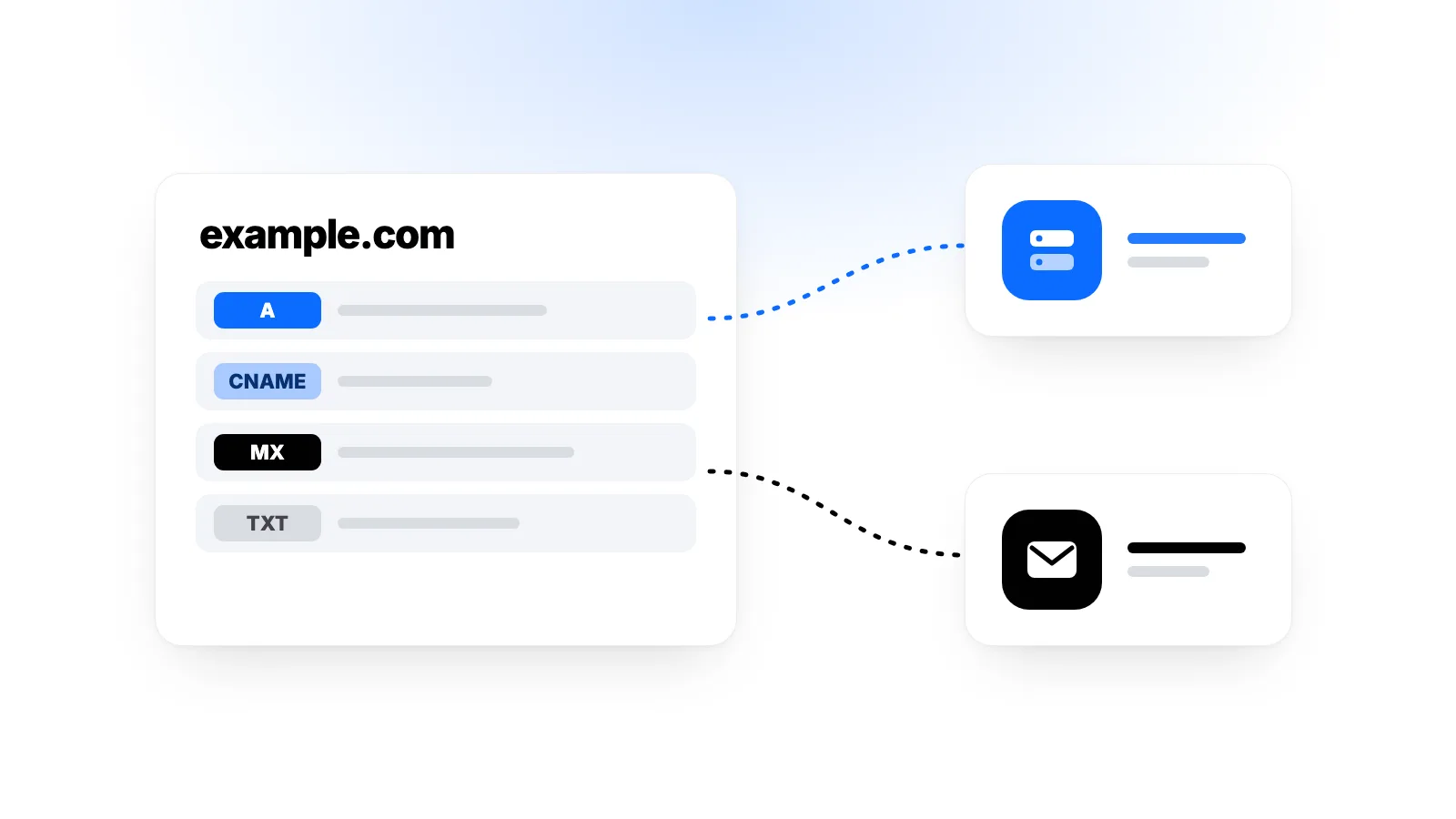
An A record maps a name to an IPv4 address such as 203.0.113.10. It is the basic record you need to run a website on a server.
example.com.      A     203.0.113.10
www.example.com.  A     203.0.113.10
If you use a cloud server, you'll find its IP address in your control panel and enter it in the A record.
AAAA Record: The IPv6 Version
An AAAA record does for IPv6 what an A record does for IPv4. If your server has an IPv6 address and your web server actually responds on it, adding an AAAA record lets visitors on IPv6 connect directly. If the server doesn't respond on IPv6, leave the AAAA record out, or some visitors may not be able to reach your site.
CNAME Record: Points One Name to Another Name
A CNAME points a name to another domain name rather than an IP address. It is often used to point www at the main domain, or to send a subdomain to an external service:
www.example.com.    CNAME   example.com.
shop.example.com.   CNAME   yourstore.external-service.com.
Two rules matter here:
- You can't put a CNAME on the root domain (
example.com). The DNS standard doesn't allow it, because the root also needs other records such as MX and NS. Some DNS services offer workarounds for this, called ALIAS, ANAME or "CNAME flattening". - A name with a CNAME can't have any other records. If
wwwhas a CNAME, you can't also add an A or TXT record forwww.
MX Record: Where Email Is Delivered
An MX record tells other mail servers where to deliver email for your domain. If you use a business email service, the provider will give you the MX records to add.
example.com.   MX   10   mx1.email-service.com.
example.com.   MX   20   mx2.email-service.com.
The number is the priority. Lower numbers are tried first, and if that server is unreachable, the next one is used. An MX record must point to a server name, not an IP address, and that name shouldn't be a CNAME.
Your website and your email can live in different places. Hosting the site on one server and email with a separate business email provider is a very common setup. Changing the A record doesn't affect email, and changing the MX record doesn't affect the website.
TXT Record: Verification and Email Security
TXT records hold free-form text. Today they are mostly used for two things:
- Proving ownership: Search engine tools, ad platforms and email services often ask you to add a specific piece of text as a TXT record to prove the domain is yours.
- Email authentication: SPF, DKIM and DMARC settings are stored as TXT records. They help keep your email out of spam folders and make it harder for others to send fake email in your domain's name.
A domain can have several TXT records, but it should have only one v=spf1 record for SPF. Publishing two separate SPF records causes SPF checks to fail.
NS Record: The Domain's Authoritative Nameservers
NS records show which nameservers hold your domain's records. You usually manage them through your registrar's "change nameservers" option. A wrong NS change can take down your website and email at the same time, so make sure all your existing records are already set up at the new location before switching.
Other Records: CAA and PTR
- CAA limits which certificate authorities can issue SSL certificates for your domain. It is optional, but if you add it, remember to include the certificate service you actually use.
- PTR (reverse DNS) maps an IP address back to a name. It isn't set in your domain's DNS panel but by whoever owns the IP address. It matters if you send email directly from your own server.
Quick Reference Table
| Record | What it does | Typical use |
|---|---|---|
| A | Points a name to an IPv4 address | Sending the site to your server |
| AAAA | Points a name to an IPv6 address | Visitors on IPv6 |
| CNAME | Points a name to another name | www or an external service subdomain |
| MX | Says where email is delivered | Business email |
| TXT | Holds text | Verification, SPF, DKIM, DMARC |
| NS | Names the authoritative nameservers | Where DNS is managed |
| CAA | Limits who can issue certificates | Optional security |
TTL and the Truth About "Propagation"
Every DNS record has a TTL (time to live). It is measured in seconds and tells resolvers how long they may cache the record. With a TTL of 3600, for example, a resolver that has already looked up the record may keep using the old answer for up to an hour.
You'll often hear that "DNS changes take 24 to 48 hours". That isn't quite right. How long a change takes to reach everyone depends mostly on the TTL of the old record. Nameserver changes can take longer, because the caching times set at the top-level domain also come into play.
For a planned move, this approach makes life easier:
- A day before the move, lower the record's TTL (to 300 seconds, for example).
- Wait at least as long as the old TTL.
- Point the record to the new address. The change now spreads within minutes.
- Once everything works, raise the TTL again.
Moving Your Site to a New Server
When moving your site to a new cloud server, this order works well:
- Prepare the new server and apply the basic security settings. Our guide to first security steps for a new cloud server walks through them.
- Install the site on the new server and test it before touching DNS. You can do this by adding a temporary line to the
hostsfile on your own computer. - Point the A (and, if used, AAAA) records to the new server's IP address.
- Leave the MX and TXT records alone. If you aren't moving your email, they need to stay as they are.
- Keep the old server running until the TTL has passed and traffic has fully moved over.
How to Check Your Records
You can query records from the command line to confirm a change went through. On macOS and Linux, use dig:
dig example.com A +short
dig example.com MX +short
dig example.com TXT +short
On Windows, nslookup does the same job:
nslookup -type=MX example.com
Asking a specific resolver helps rule out caching confusion. For example, dig @1.1.1.1 example.com A sends the query straight to that resolver.
Common Mistakes
Editing records in the wrong panel. If your nameservers point to another service, changes in your registrar's panel have no effect.
Deleting MX records during a move. If email records are forgotten while moving a site, messages can be lost or bounce.
Adding a second SPF record. When you add a new email sending service, update your existing SPF record instead of creating another one.
Panicking right after a change. Your own device may still be caching the old answer. Check with a different resolver and give the TTL time to expire.
Frequently Asked Questions
Do My Domain and Server Have to Come From the Same Company?
No. Your domain can be with one company, your server with another and your email with a third service. DNS records tie them together.
Should both the www and non-www addresses work?
Yes, add records for both. Then permanently redirect one to the other on your web server so you use a single address, which also keeps things tidy for search engines.
Do I Need DNS Changes to Get an SSL Certificate?
In most cases, a correct A record pointing the domain to your server is enough. Free certificate services issue a certificate after confirming that the domain points to that server. Wildcard certificates (*.example.com) usually require verification through a TXT record instead.
Can a DNS Change Harm My Website?
Not if it's done correctly. The real risks are shutting down the old server too early or accidentally deleting email records. Taking a screenshot or copy of your current records before any change is a good habit.
Conclusion
DNS can look intimidating at first, but most everyday tasks come down to a few record types: A and AAAA for your website, CNAME for pointing names elsewhere, MX for email, and TXT for verification and email security. Making changes in the right panel, lowering the TTL ahead of time and protecting your email records will prevent most problems during a move.
Every Karakaş Digital cloud server includes an IPv4 address in its price and supports IPv6. You'll find the IP address you need for your domain's A record in your control panel. See our cloud servers page for plans, or visit our contact page if you have questions.